Logitech
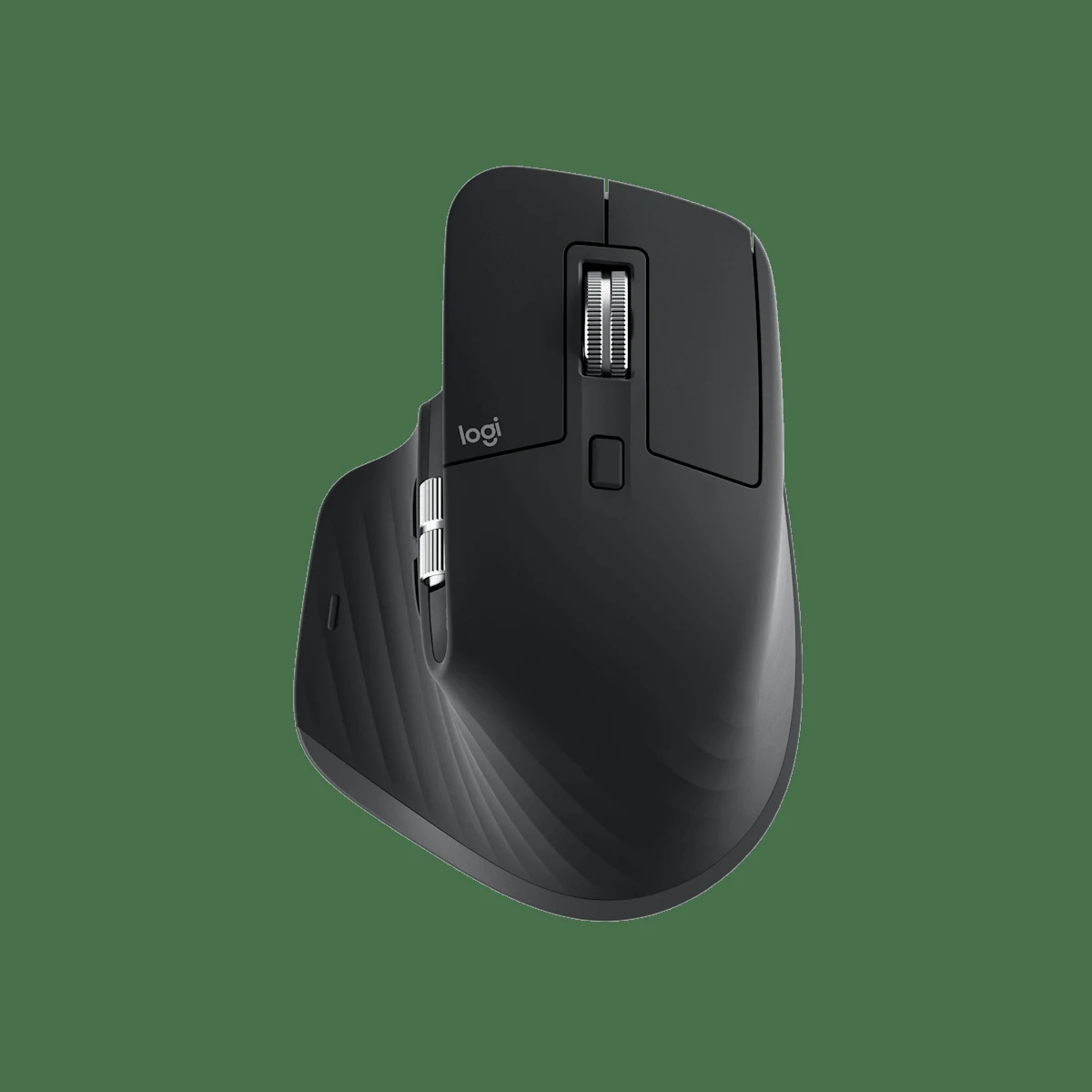
Logitech MX Master 3S Mouse
Ergonomic wireless mouse with MagSpeed scroll. USB-C, multi-device, quiet clicks.
Buy on Amazon →Affiliate link — same price for you, supports Switcheroom.
Pros & Cons
What we like
- Best scroll wheel ever
- ergonomic shape
Watch out for
- Right-hand only
- not for gaming
Renter-Safe Verified
This product can be used, installed, or placed without drilling, nailing, or permanently modifying your rental. When you move out, it comes with you — and your deposit stays intact.
A shared apartment office can make ordinary mouse clicks surprisingly distracting, especially when one person works late beside a sleeping area. This is one of the strongest productivity mice for quiet, scroll-heavy work: its electromagnetic wheel, side scroll wheel, programmable controls, and subdued main clicks solve real spreadsheet, timeline, and document problems. The catch is the sculpted right-handed body. Skip it if you are left-handed, prefer a small fingertip mouse, or mainly play fast competitive games.
Who It Is For—and Who Should Skip It
The MX Master 3S is for designers, editors, analysts, developers, and anyone who moves through long pages or wide timelines all day. It also makes sense for a renter who switches between a work laptop and a personal computer at the same desk because Logitech supports connection to multiple devices. It is overkill for basic browsing, and the pronounced thumb rest can feel bulky in a small hand. Gamers should buy for office productivity, not assume that a premium work mouse replaces a lighter, high-polling gaming model.
What Product Details and Buyer Feedback Reveal
Manufacturer-specified details: Logitech lists an 8,000 DPI Darkfield sensor that can track on glass at least 4 mm thick, Quiet Click main buttons, MagSpeed electromagnetic scrolling, USB-C charging, and Easy-Switch control for up to three computers. The Logi Options+ app assigns shortcuts and application-specific actions. Connection can use Bluetooth Low Energy or Logitech's Logi Bolt system; package contents can vary by edition, so confirm whether the receiver is included before ordering.
Feedback pattern: retailer summaries and independent reviews consistently praise the free-spinning scroll mode, comfortable support for a right hand, quiet clicks, long intervals between charging, and customizable controls. The repeated objections are equally useful: the mouse is relatively heavy, the shape excludes left-handed use, and customization depends on software that a locked-down work computer may not allow. Some users also need time to stop triggering the thumb-area controls accidentally.
Renter and Apartment Fit
| Use condition | Fit | What to know |
|---|---|---|
| Shared bedroom office | Strong | Quiet main clicks reduce repetitive noise, though the wheel and keyboard remain audible. |
| Hot-desk setup | Strong | It travels without installation and can remember multiple paired devices. |
| Glass tabletop | Conditional | Logitech specifies tracking on glass at least 4 mm thick; unusual coatings can still justify a mouse pad. |
There is no deposit or surface-damage risk. The total-cost question is software and fit: paying for advanced buttons makes little sense if employer policy blocks Logi Options+ or if your hand dislikes the shape. Try the body in a store with your normal grip if possible.
Setup Reality and Common Failure Modes
Charge by USB-C, pair over Bluetooth or a compatible Logi Bolt receiver, and install Logi Options+ only if you want remapped controls and workflow features. No tools are required. Common setup failures come from pairing to the wrong numbered device slot, expecting a Bolt receiver in an edition that does not include one, using an older Unifying receiver that is not the same system, or blaming the mouse when corporate device-management rules block its companion app.
The honest trade-off is specialization: this shape and control layout reward long productivity sessions but reduce universality. A simpler ambidextrous mouse is a better shared-household purchase; the MX Master 3S earns its premium when one right-handed user will exploit horizontal scrolling, app shortcuts, and multi-device switching.
Last checked: 2026-07-27. Sources: Logitech product page, RTINGS review, and Best Buy listing and feedback.Best For
- Shared apartment office for a quiet-click worker
- Home studio for a video editor
- Small desk shared between work and personal laptops
- Rental bedroom workstation for a right-handed analyst
Setup & Install
No tools or permanent installation are needed. Charge with USB-C, select one of the device channels, and pair through Bluetooth Low Energy or a compatible Logi Bolt receiver. Logi Options+ is needed for deeper button customization, so check employer software policy before relying on those functions.
FAQ
Is the Logitech MX Master 3S quiet enough for a shared room?
Its main buttons use Logitech's Quiet Click design and are substantially less intrusive than conventional clicks, making it a strong shared-room option. It is not silent: the scroll wheels, desk contact, and keyboard can still create noise.
Can the MX Master 3S connect to more than one computer?
Yes. Logitech supports up to three paired devices through Easy-Switch, using Bluetooth Low Energy or compatible Logi Bolt connections. Switch the numbered channel before pairing each computer.
Does the MX Master 3S work on a glass desk?
Logitech specifies Darkfield tracking on glass at least 4 mm thick. Performance can vary with unusual coatings or reflections, so a thin mouse pad remains the safest answer if tracking is inconsistent.
Is the MX Master 3S suitable for left-handed users or gaming?
The body is sculpted for the right hand, so left-handed buyers should skip it. Its weight and productivity-focused wireless design also make a dedicated gaming mouse a better choice for fast competitive play.